 Noel D'Costa
Contents
- S-User vs P-User vs Universal ID
- What changed in 2026
- How to manage your SAP Universal ID, step by step
- How to create an SAP Universal ID
- How to link an S-User to SAP Universal ID
- How to add a P-User
- How to reset your SAP password
- How to remove a user from your Universal ID
- How to change the email on your Universal ID
- How to turn on two-factor authentication
- Common SAP Universal ID errors and fixes
- If you hold several S-Users
- How to find your S-User ID
- How to find your company's super administrator
- Checklist for joining and leaving a client
- Frequently asked questions
SAP Universal ID is a free, personal SAP account that holds all your S-User and P-User IDs, certificates and SAP Community reputation, and stays with you between jobs. Since 2026 it is no longer a login: you sign in with each S-User or P-User ID, and users attach to it automatically by email address.
Short answer. A P-User is your own SAP user. An S-User is issued by an employer or client under their SAP customer number. SAP Universal ID is the wallet that lists all of them in SAP Account Manager at account.sap.com.
When I was new to SAP, I spent weeks trying to figure out P-Users, S-Users and what connected to what. Reset emails were a weekly event.
The table sets out who owns each ID, what it is for and what happens when you leave.
| P-User | S-User | SAP Universal ID | |
|---|---|---|---|
| Who owns it | You | Your employer or client, under their SAP customer number | You |
| Who creates it | You, by registering at account.sap.com | That company's administrator, in SAP for Me | You, at account.sap.com |
| Use it for | SAP Community, trials, developer content, SAP Learning | Support cases, software downloads, licence keys, system data | Listing all your users, keeping certificates and community reputation |
| Can you log in with it? | Yes | Yes | No, not since January 2026 |
| Expiry | None | 24 months by default, extendable by the administrator | None |
| When you leave a company | Nothing changes | The administrator deletes it, or it expires | You keep it. Add your new work email |
My P-User has followed me for about 16 years through different jobs. I have had six different S-Users as I moved between companies. Universal ID is where all of them sit in one list.
I explain the S-user and P-user mistake that costs SAP professionals their history in this video.
SAP made two changes this year. The official detail is on SAP's Universal ID page.
- Aug 2025Set a password for each userAsked of users with several linked identities, through January 2026
- 20 Jan 2026Universal ID stops being a loginSign in with the S-User or P-User ID, or its email
- 13 Jul 2026Accounts link by email addressManual linking removed. Links made before July stay
Source: SAP Universal ID page, sap.com
- January 2026: Universal ID stopped being a login. It is no longer an identity provider. You sign in with the S-User or P-User ID, or the email address on that user, and that user's password, through SAP Cloud Identity Services (SAP IAS).
- 13 July 2026: linking by email address. The manual link and unlink options and the Linked status column were removed. Every S-User or P-User whose email is registered in your Universal ID attaches automatically, and anything you linked by hand before July stays linked.
No accounts were deleted in either change. If you skipped the 2025 prompt to set a password for each user, use Forgot password on that user.
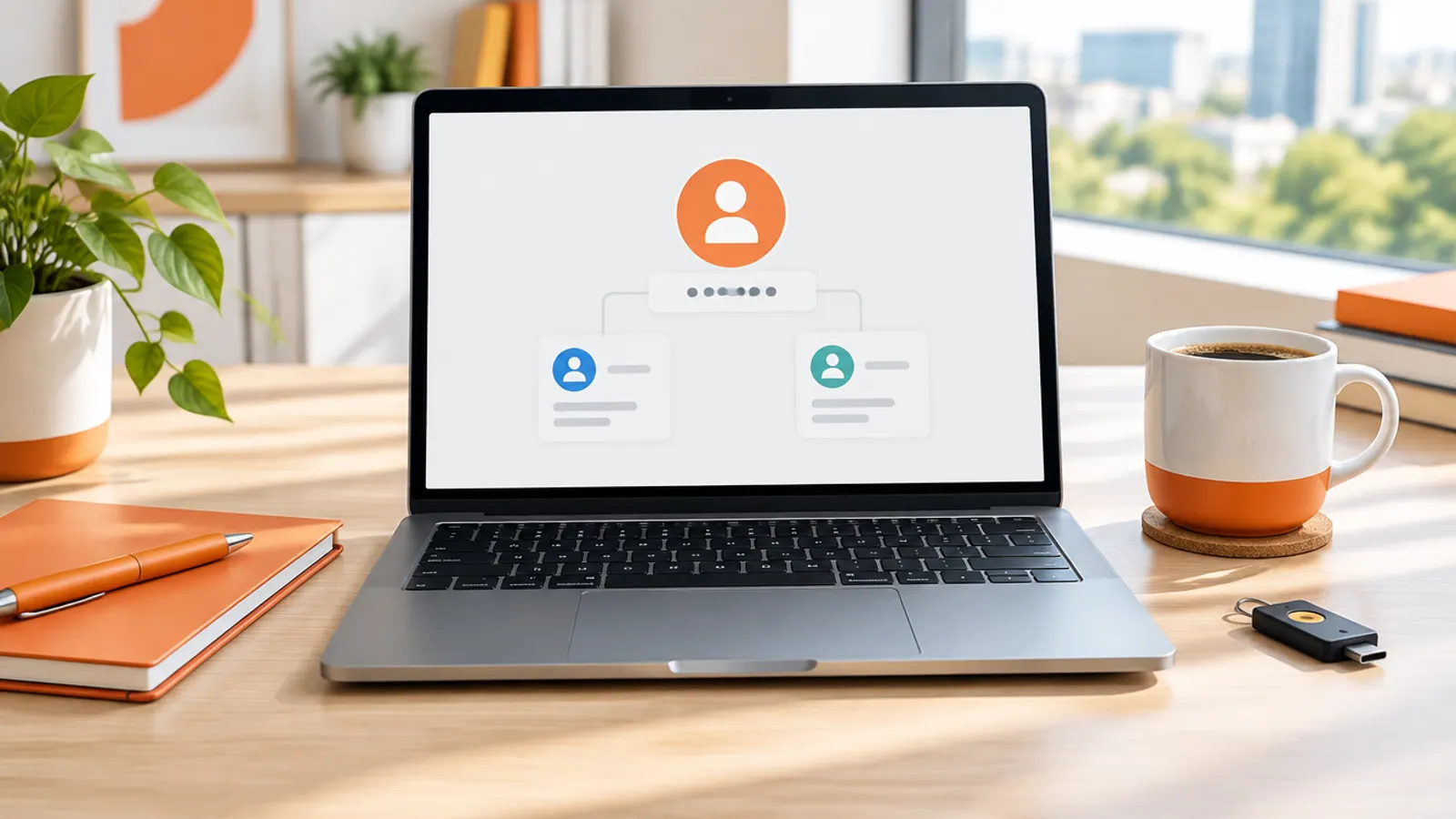
Two addresses matter here, and they are easy to mix up. account.sap.com is SAP Account Manager, where your Universal ID lives. accounts.sap.com, with an s, is the profile page for each individual user, where passwords and two-factor settings sit.
How to create an SAP Universal ID
- Go to account.sap.com and start a new registration. The form is titled "Register your SAP ID".
- Enter your name and a personal email address, not a work one.
- Leave the username blank or pick one: up to 30 characters, Latin letters, numbers, dashes and underscores. If blank, SAP builds one from your name plus digits.
- Accept the Terms of Use, complete the captcha and click Register.
- Enter the verification code SAP emails you. It stays valid for 15 minutes.
The registration creates your Universal ID and a user identity linked to it. If you already have a Universal ID, do not register a second one. Add the new email to the one you have.
How to link an S-User to SAP Universal ID
Since July 2026 you link an S-User by adding its email address, not the user itself.
- Sign in to SAP Account Manager at account.sap.com.
- Open the Accounts tab and click Add accounts.
- Enter the email address on the S-User.
- Enter the passcode SAP sends to that address.
- Check the list. Every S-User and P-User with that email now appears under your Universal ID.
If the S-User does not appear, its email differs from the one you added. Ask the administrator who created it which address is on the user.
How to add a P-User
An old P-User attaches the same way. Add the email address it was registered with, using the five steps above. If you have no P-User at all, registering a Universal ID gives you a user identity in the same step.
How to reset your SAP password
There is no separate Universal ID password to reset for signing in to SAP sites any more. You reset the password of the specific S-User or P-User.
- Go to accounts.sap.com and click Forgot password?
- Enter the user ID (SAP recommends this) or the email. If several users share that email, you must enter the user ID.
- Click Send.
- Open the email and click Click here to reset your password. The link expires within 2 hours.
- Enter a new password of at least 8 characters, using three of: lowercase, uppercase, numbers, symbols.
- Re-enter it and click Save.
You can change or reset a password only once every 24 hours. If the email never arrives, SAP's guide says to write to sso@sap.com.
How to remove a user from your Universal ID
There is no unlink button since 13 July 2026, and you cannot delete an S-User yourself. SAP's answer is to ask the administrator of the company that owns it.
- Ask that company's administrator to delete the S-User.
- The administrator opens the User Management app in SAP for Me and clicks Delete in the Actions column.
- If the S-User holds a special function, such as software recipient or technical contact, SAP has to move that function to someone else first.
- Once deleted, the S-User sits in Deleted Users for 12 months and cannot be reactivated.
To delete the Universal ID itself, contact SAP's Customer Interaction Center (CIC).
How to change the email on your Universal ID
- Sign in to SAP Account Manager at account.sap.com.
- On the Accounts tab, click Add accounts and enter the new address.
- Enter the passcode sent to the new address.
- Open the Personal Info tab and set the new address as primary.
Keep your personal address registered as a backup. The email on an S-User is a different thing: only the company's administrator can change it. When it changes, the S-User moves to whichever Universal ID holds the new address.
How to turn on two-factor authentication
SAP offers time-based one-time password (TOTP) two-factor authentication on each user's profile.
- Sign in at accounts.sap.com.
- Scroll to TOTP Two-Factor Authentication and click Activate.
- Install an authenticator app. SAP suggests Microsoft Authenticator or Google Authenticator.
- Scan the QR code with the app.
- Enter the passcode the app shows and click Activate.
The page then confirms "You have a device configured for TOTP two-factor authentication" and SAP sends an email. Changing phones means clicking Deactivate first, confirming with a code, then activating again on the new device. Your super administrator can enforce MFA, which overrides your own choice.
My P-User has followed me for about 16 years through different jobs. I have had six different S-Users as I moved between companies. Universal ID is where all of them sit in one list.
Most problems after the 2026 changes come down to email addresses, per-user passwords and expiry dates.
| Problem | Most likely cause | Fix |
|---|---|---|
| A user is missing from your Accounts tab | Its email differs from the addresses in your Universal ID | Add that email under Accounts, or ask the administrator to correct the email on the S-User |
| User or email already associated with another Universal ID | It sits under an older Universal ID you created | Raise an SAP support ticket or contact the CIC. SAP's KBAs use component XX-SER-UID |
| Email sign-in fails | Several users share that email | Sign in with the S-User or P-User ID instead |
| Old password rejected after January 2026 | Each user now has its own password | Use Forgot password on that specific user |
| Password locked | Too many wrong attempts | Reset the password. Happens to me at least once a year |
| Cannot change the password again | One change or reset per 24 hours | Wait 24 hours |
| Reset email never arrives | Spam filter, or the wrong user | Check spam, retry with the user ID, then write to sso@sap.com |
| Sign-in fails in one browser | Third-party cookies blocked, or Internet Explorer | Allow third-party cookies and use a current Chrome, Edge, Firefox or Safari |
| S-User expired | It passed its expiry date | The administrator can reactivate it within 90 days. After that it is deleted and needs a new S-User |
| Signed in but cannot create cases or download | The S-User lacks that authorisation | Request it in SAP for Me. Your administrator approves it |
Universal ID never changes permissions. Each S-User keeps its own authorisations, granted by that company's administrator.
Consultants feel the January change most. One login used to cover every client. Now each S-User has its own password, and switching users means logging out and signing in again.
Treat each S-User as the client's asset, not yours. Keep a password manager entry per S-User that names the client and customer number. SAP's limits are generous: one Universal ID holds up to 10 email addresses and up to 100 S-Users or P-Users, all belonging to you.
Watch the expiry dates. New S-Users get a 24-month validity by default, then a 90-day expiring phase with emails at 30, 14 and 2 days before expiry. You can request an extension yourself in SAP for Me, and the request lands with the administrator.
How to find your S-User ID
- Sign in to SAP Account Manager at account.sap.com and open the Accounts tab. It lists every user attached to your Universal ID.
- In SAP for Me, My authorizations & functions shows what the user you are signed in with can do.
- If you were never sent one, you may not have an S-User. Your company's administrator can see every S-User in the User Management app.
How to find your company's super administrator
SAP creates the first S-User for a new customer and makes it the super administrator. After that, administrators in your company create every other S-User. SAP recommends at least two more super administrators as cover.
- Sign in to SAP for Me with any S-User from that company.
- Open Users & Contacts and then Important contacts. It lists the super administrator, cloud administrator and security contact.
- If the super administrator has left and nobody else can act, raise a case on component
XX-SER-FORMEnaming the person who should take over.
If you have no S-User yet, start with whoever raises SAP support cases in IT. Note that administrators cannot see whether an S-User is attached to a Universal ID, so they cannot fix that side for you.
Consultants hit these problems at the start and end of engagements. This is the order I would work through.
- Before day one: confirm your Universal ID has a personal primary email.
- Day one: ask the client's administrator for an S-User under their customer number, created with the email you will use there.
- Same day: add that email in SAP Account Manager and check the new S-User appears.
- First week: request only the authorisations your role needs, and turn on two-factor authentication if the client has not enforced it.
- During the engagement: sign in with the S-User ID rather than the email if several of your users share an address.
- Before you leave: check your personal email is in your Universal ID. Moving certificates to a new S-User needs a support ticket.
- After you leave: expect the S-User to be deleted. Your P-User and Universal ID stay.
An S-User is tied to one customer number and cannot move to another, so a new client always means a new S-User. If the client also gives you BTP access, start with my SAP BTP Cockpit guide. Login failures there are a different problem, covered in my BTP Cockpit troubleshooting guide.
What is SAP Universal ID?
SAP Universal ID is a free, personal SAP account that holds all your S-User and P-User IDs, learning certificates and SAP Community reputation. It belongs to you, not your employer, so it stays with you when you change jobs. Since January 2026 it is no longer used to log in.
How to link an S-User to SAP Universal ID?
Add the S-User's email address. In SAP Account Manager at account.sap.com, open the Accounts tab, click Add accounts, enter the email and confirm the passcode. Every S-User and P-User with that email then attaches automatically, and anything linked by hand before 13 July 2026 stays linked.
What is the difference between an S-User and a P-User?
A P-User is personal: you register it yourself and it follows you between jobs. An S-User is created by an employer or client's administrator under their SAP customer number, for support cases, downloads and licence keys. When you leave, they delete it.
How does SAP Universal ID login work now?
Since January 2026 you do not log in with Universal ID. You sign in with the S-User or P-User ID, or the email on that user, and that user's own password. If several users share one email, use the user ID.
How do I find my S-User ID?
Sign in to SAP Account Manager at account.sap.com and open the Accounts tab, which lists every user attached to your Universal ID. If it is not there, ask your company's SAP administrator, who can see all company S-Users in the User Management app in SAP for Me.
Can I have multiple S-Users?
Yes. You get one per company or customer number, because an S-User cannot move between customer numbers. One Universal ID holds up to 10 email addresses and up to 100 S-Users or P-Users, as long as all of them belong to you.
How to reset SAP Universal ID password?
Reset the password of the specific S-User or P-User. Go to accounts.sap.com, click Forgot password?, enter the user ID and click Send, then use the link in the email within 2 hours. You can reset once every 24 hours.

Written by
Noel D'Costa

SAP Integration Suite: decisions and production trade-offs
SAP Integration Suite is not just a renamed CPI, and the decisions teams get wrong are rarely about technology. This guide covers the components, PI/PO migration, legacy limits, testing and the ownership gaps behind most interface failures.
SAP BTP Cockpit issues: five problems and how to fix them
Five SAP BTP Cockpit problems come up again and again: 401 token errors, Integration Suite errors, dead links, CAP destination failures and trial apps that stop overnight. Here is what to check first for each.

SAP FICO explained: 7 things that break implementations
The SAP FICO module rarely causes the problems. Decisions made too fast or too late do: master data nobody owns, CO designed without controllers, reporting built in the last sprint.

SAP CPI: what it is, its architecture and the PI/PO move
SAP CPI is the Cloud Integration capability of SAP Integration Suite, SAP's cloud middleware on SAP BTP. Here is how its architecture works, how it compares with PI/PO before mainstream maintenance ends in 2027, and how to plan the move.
Next step
Running an ERP programme right now?
If this article touched on a programme you are live in right now, a 30-minute conversation usually gets further than another week of internal analysis.