 Noel D'Costa
Contents
- What the Migration Cockpit is, and where it applies
- Staging tables or direct transfer
- Why the teams I lead use staging tables
- The Migration Cockpit step by step
- When the standard objects are not enough
- Running the cockpit as a programme, not a tool
- What to ask your partner about the cockpit
- What I'd do next
- Frequently asked questions
The SAP S/4HANA Migration Cockpit is SAP's tool for loading master data and open items into a new S/4HANA system, through the Fiori app Migrate Your Data. You choose staging tables or direct transfer, pick the migration objects, map the values, simulate and then load, object by object, in dependency order.
Short answer for a programme lead: use it for a new implementation, plan it as a workstream from week one and decide early who owns the data. The tool is the easy part.
This guide is a spoke of my ECC to S/4HANA migration guide. It is written for programme leads and data leads who need to run the cockpit well, not just install it.
The cockpit moves business data into S/4HANA using predefined migration objects. Each object describes the source and target structures for one business object, such as a customer, a supplier, a material or an open item, plus the mapping rules between them.
SAP is clear about its scope. The cockpit is designed for the initial load of a new implementation, and not for keeping systems in sync or running a continuous flow of data. A brownfield conversion does not use it for the core move, because the Software Update Manager converts the data in place.
Two naming points save confusion. The old Web Dynpro transaction LTMC is deprecated and can no longer be used to migrate data; you can only view old projects in it. Its successor is the Fiori app Migrate Your Data, and that is what people now mean by "the cockpit".
It applies across editions, with differences in how you configure and extend it. This table compares them as of October 2026:
| Area | SAP S/4HANA on-premise and SAP Cloud ERP Private (S/4HANA Cloud Private Edition) | SAP S/4HANA Cloud Public Edition |
|---|---|---|
| App | Migrate Your Data | Migrate Your Data (app F3473) |
| Staging tables | Local S/4HANA schema or a remote SAP HANA schema | Local schema, or a remote SAP HANA Cloud schema on SAP BTP; set up through scope item 2Q2 |
| Direct transfer | From SAP ERP (ECC 6.0 and higher), SAP AFS 6.0, SAP EWM 5.1 and higher, and SAP APO SPP (SCM 7.14 and higher) | From SAP ECC 6.0 and higher; set up through scope item BH3 |
| Changing objects | Transaction LTMOM, the migration object modeler | Model Your Migration Objects app for staging; Implementation Activities app for direct transfer; only released objects can be enhanced |
| Source system restriction | An S/4HANA system cannot be the source | S/4HANA, Private Edition and Public Edition systems cannot be the source |
Every migration project uses one of two approaches. The choice shapes your whole data workstream, so make it in Explore, not in Realize.
Staging tables. The cockpit generates a set of database tables for each migration object in your project. You fill them from SAP's XML template files, from CSV files, or with your own tools, such as SAP Data Services or another ETL tool. The source can be anything: an old SAP system, Oracle, Dynamics, a home-grown system or a spreadsheet.
Direct transfer. The cockpit connects to an SAP source system over RFC and selects the data itself, by company code for an ERP source. The prerequisites include the DMIS add-on in the source system, which is included in the S/4HANA licence. Source systems can be non-Unicode.
This is how the two compare for the decisions a data lead has to make:
| Question | Staging tables | Direct transfer |
|---|---|---|
| Which sources? | Any system, through files or tools | Supported SAP sources only |
| Where do you cleanse? | In the staging tables or upstream, before the load | Mostly in the source system, before selection |
| Who can review the data before load? | Anyone with access to the tables or the files | Mainly the cockpit team, through the cockpit screens |
| Effort to start | Higher: you build extraction and fill the tables | Lower: the cockpit selects for you |
| Best fit | Several sources, dirty data, heavy transformation | A clean SAP ERP source moving to a new S/4HANA design |
Direct transfer can also park the selected data in staging tables as intermediate storage, which gives you a review point in between. Check whether your release supports it before you design around it.
Why the teams I lead use staging tables
The teams I lead use the cockpit; I do not run it hands-on. Their default, and my preference, is staging tables over direct transfer.
The reason is control. With staging tables, the data that will be loaded sits in tables you can query, check against business rules and fix before anything touches S/4HANA. Data stewards can sign off what they actually see, not a selection they have to trust.
It also separates cleansing from loading. Duplicate vendors, missing bank details and wrong units of measure get fixed in one place, with an audit trail, and the load itself becomes repeatable. Direct transfer is quicker to start, but it tends to carry the source system's habits straight into the new one.
Direct transfer still has its place. If the source is a single, well-kept SAP ERP system and the target design is close to it, it saves real extraction work.
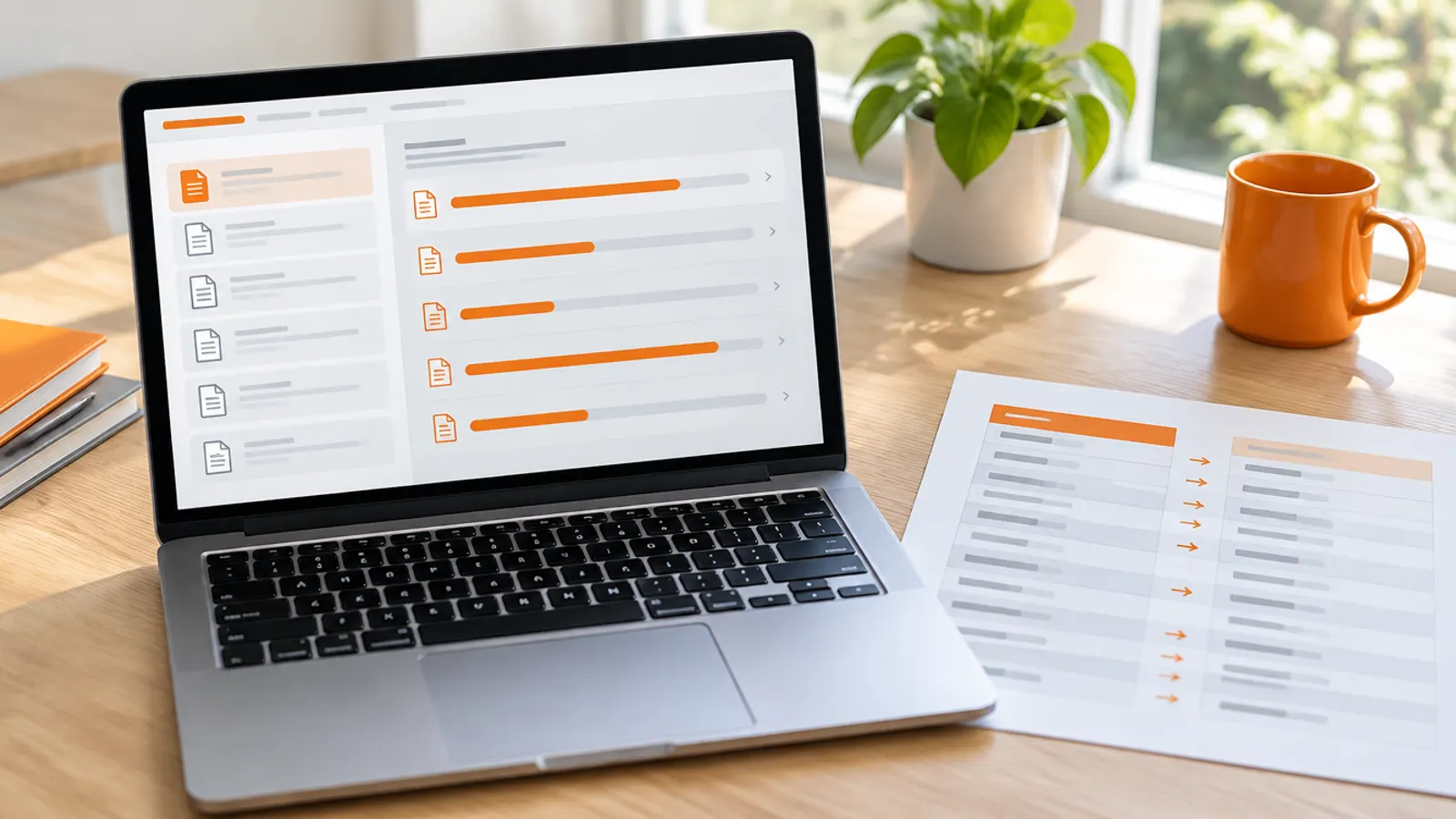
SAP describes the migration process as a fixed sequence. These are the steps as your team will run them with staging tables.
The Migration Cockpit process
Create project
Open Migrate Your Data, create a project and select the migration objects in scope.
Fill staging tables
Download the templates and upload them, or fill the tables with your own tools.
Map values
Process the open mapping tasks: value mappings and fixed values.
Simulate
Simulate the load and fix every error before posting anything.
Migrate and correct
Load in dependency order, then fix failed records and reconcile.
- Create the migration project. In the Migrate Your Data app, create a project, choose where the staging tables live (local or remote schema) and select the objects in scope. SAP recommends creating projects first in a test system that is a copy of production, and a new project for each test transfer that carries the corrections from the last one.
- Check the dependencies. A migration object can have predecessor objects that must be processed first, and successor objects that come after. The Explore Migration Objects app (F8638) shows mandatory and optional predecessors as a graph. Business partners before open items, materials before stock: the cockpit will not let you skip the order.
- Fill the staging tables. XML templates are SAP's default and recommended option, because each file holds every structure for the object plus instructions. CSV is an expert option, one file per structure. A single XML file can be up to 100 MB, and a zip of several XML files cannot exceed 100 MB either, so large objects need splitting or a tool that writes to the tables directly.
- Read the validation messages. After upload, the system validates the file and adds a Messages sheet with every error and warning, linked to the cell. Files with warnings need someone to decide whether they can be ignored before the data moves on.
- Process the mapping tasks. Value mapping tasks translate source values into target values, such as old plant codes into new ones. Fixed value tasks set defaults. For large mappings, download the mapping templates rather than typing values in the screens.
- Simulate. The simulation runs the load without posting, and shows which instances would succeed and which would fail. It can raise new mapping tasks; process them and simulate again. A few objects cannot be simulated, so plan extra checks for those.
- Migrate. Run the load object by object, predecessors first. Some objects have more than one transfer step, and each step is simulated and migrated in turn.
- Correct and reconcile. Fix failed instances, using correction files where needed, then reconcile counts and financial totals against the source. A job that ends without errors is not proof the data is right.
Direct transfer follows the same pattern, with one difference at the start. Instead of filling tables, you run Select Data against the source system, and you can restrict the selection further in the modeler.
Sooner or later a migration object will not quite fit. A custom field in the source, a split you need on the way in, or an object SAP does not deliver.
On-premise and in the private edition, the tool is transaction LTMOM, the SAP S/4HANA migration object modeler. It lets the team enhance standard objects, add fields, define custom objects and manage transports of migration content between systems. It needs its own developer role, so plan who holds it.
In the public edition the options are narrower. For staging tables, the Model Your Migration Objects app can enhance only certain migration objects released by SAP, with an SAP Note per object that lists what can be extended. That is consistent with the public edition's clean core model, and it is a good test of whether your data really needs to look the way it did.
My advice is to treat every modeler change like custom code. Log it, give it an owner and ask whether the business genuinely needs it.
The cockpit loads what you give it. Whether that data is right is still your decision.
Data migration is 30 to 40 percent of the effort on the S/4HANA programmes I see. The cockpit sits inside that workstream, so most of what goes wrong with it is not the tool.
Five things decide whether the cockpit work lands:
- Scope the objects in Explore. List every migration object, its source, volume and owner. The free data migration estimator gives you a defensible effort range once you have real counts.
- Name data owners per object. Finance owns customer and supplier financial data, procurement owns materials. IT cannot decide which of two duplicate vendors is right.
- Plan load cycles with exit criteria. Each cycle is a new project in a test system, and each ends with a reconciliation the business signs. My guide to why SAP data migration fails has a mock-load plan you can copy.
- Size the cutover window. Run one cycle at full production volume. File limits and load times only become visible at real size.
- Freeze the objects and mappings before cutover. The production load should repeat the final rehearsal, with the same projects, templates and mappings.
The biggest mistake I see on S/4HANA programmes is not planning properly at the start. With the cockpit, that shows up as late object lists, missing owners and a first load cycle in Realize that finds problems Explore should have found.
Those cycles also shape the overall plan. My S/4HANA migration timeline guide shows where the load cycles sit by path, and the S/4HANA migration cost guide covers what drives the data budget.
What to ask your partner about the cockpit
Before you sign, ask the partner to show you their data approach in writing, not in a pitch:
- Which approach they propose per object, staging tables or direct transfer, and why.
- How many load cycles they plan, and what the exit criterion is for each.
- Which objects they expect to change in the modeler, and who maintains those changes.
- Who on your side signs off each object, and when.
Generic answers here are a warning sign. A partner who has done this before can name the awkward objects for your industry.
Take a full extract of your customer, supplier and material masters this month, count the records and profile the quality. Then decide staging tables or direct transfer per object, with named owners.
If you have not yet assessed the source system, start with the SAP Readiness Check and migration assessment. If you want an independent view on your data migration plan, get in touch.
What is the SAP S/4HANA Migration Cockpit?
It is SAP's tool for the initial load of business data into a new S/4HANA system, run through the Fiori app Migrate Your Data. It uses predefined migration objects for master data and open items, and supports two approaches: staging tables and direct transfer from an SAP source system.
Is LTMC still available in S/4HANA?
No, not for migrating data. SAP has deprecated transaction LTMC, and it can no longer be used to migrate data to S/4HANA. You can still view old projects in it.
New migrations run in the Migrate Your Data app.
What is the difference between staging tables and direct transfer?
With staging tables, the cockpit generates tables per migration object, and you fill them from XML or CSV templates or with your own tools, from any source. With direct transfer, the cockpit reads the data directly from a supported SAP source system, such as SAP ERP 6.0, over an RFC connection. Staging tables give you more room to check and cleanse before the load.
Can the Migration Cockpit be used for a brownfield conversion?
Not for the core move. SAP designs the cockpit for the initial load in a new implementation scenario. A brownfield system conversion converts the data in place with the Software Update Manager.
What is LTMOM in SAP?
LTMOM is the transaction for the SAP S/4HANA migration object modeler, used on-premise and in the private edition. It lets you enhance standard migration objects, add custom fields, create your own objects and transport migration content. In the public edition, the Model Your Migration Objects app does a narrower version of the same job.
What is the file size limit in the S/4HANA Migration Cockpit?
A single XML template file can be up to 100 MB, and a zip of several XML files cannot exceed 100 MB. Files inside the zip can be larger once compressed, with the per-file limit depending on edition and release.
CSV folders are also limited to 100 MB. For very large objects, fill the staging tables with a tool instead of files.

Written by
Noel D'Costa

S/4HANA migration cost: what drives it by path
What an ECC to S/4HANA migration costs by company size, why brownfield vs greenfield cost depends on your system, and the drivers that move the bill: custom code, data, mock conversions, dual running and the contract conversion.

S/4HANA migration timeline and project plan by path
How long an ECC to S/4HANA migration takes on each path, what the project plan holds in each SAP Activate phase, and where migration timelines slip.

SAP Readiness Check and S/4HANA migration assessment
The SAP Readiness Check tells you what in your ECC system collides with S/4HANA. A migration assessment tells you what to do about it. Here is what each covers, how to run the check and where it falls short.

SAP test data management: masked, production-scale data
SAP test data has to look like production and must not be production. How to get masked data at production scale into your test systems, which copy methods and tools fit, and where privacy law draws the line.
Next step
Running an ERP programme right now?
If this article touched on a programme you are live in right now, a 30-minute conversation usually gets further than another week of internal analysis.